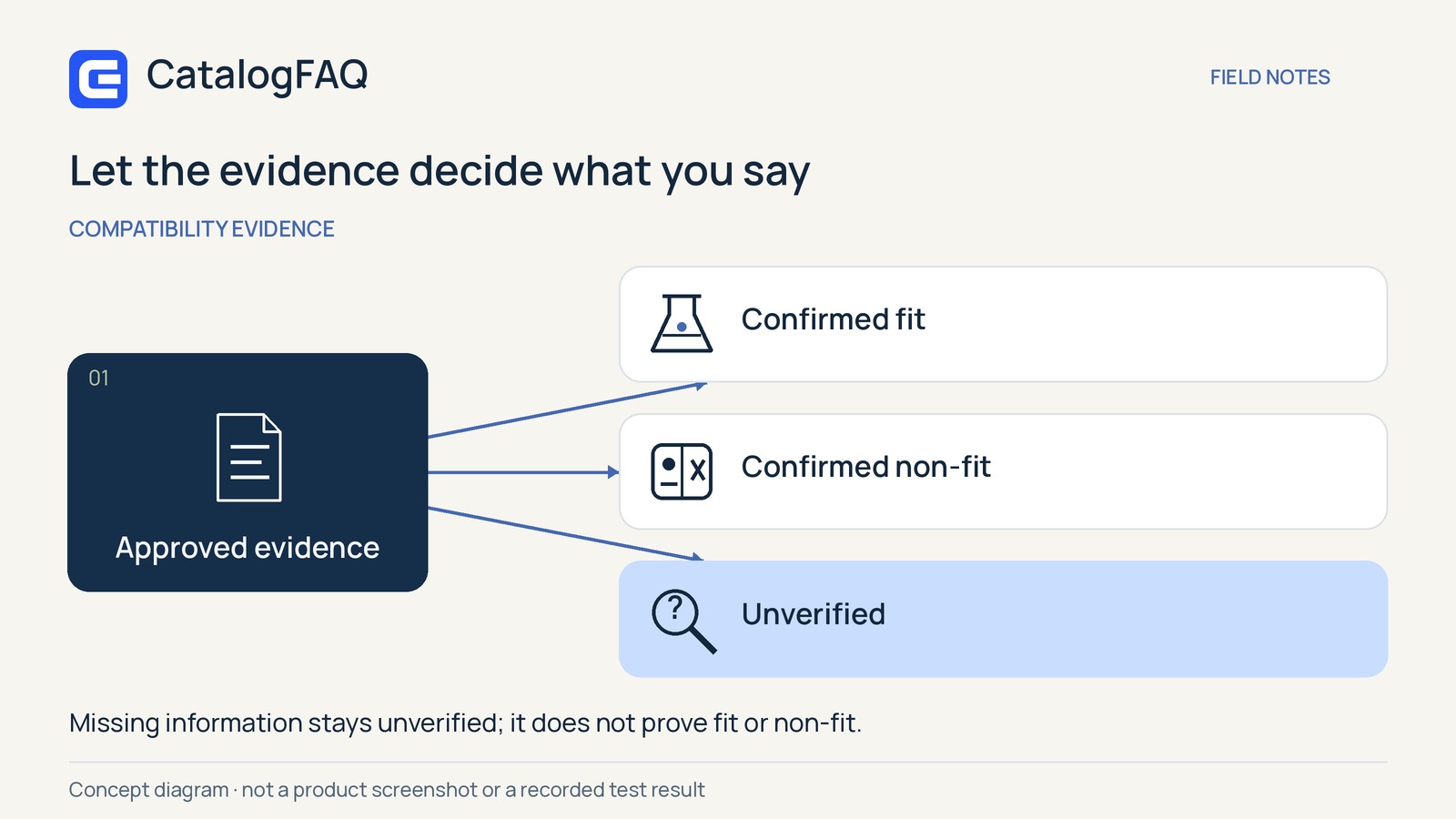
When your shipping FAQ and a product page give different dispatch times, first compare the items and conditions each answer covers. If the product has an approved exception, limit the default wording to the items it actually covers rather than making every answer identical. Conflicting terms for the same item under the same conditions need the fulfillment owner’s decision before editing.
This worked example follows one question: “When will my item be dispatched?” All pages and editing arrangements are hypothetical. Bold uppercase labels are placeholders for approved wording or actual page details; replace them before publishing.
Confirm the terms and record approval
Ask the fulfillment owner to confirm the terms, the items and conditions they cover, what starts any stated window, and whether the wording describes an estimate or a commitment.
Keep dispatch separate from delivery. A statement about when an item is sent is not a promise about when it will arrive.
This example covers item-level answers only. Mixed-item orders need their own approved explanation; do not assume split dispatches or that one item’s timing determines the whole order.
Assume fulfillment has approved both term sets and confirmed that DEFAULT SCOPE excludes EXCEPTION SCOPE. Create two internal approval records:
- Standard record: DEFAULT SCOPE and complete STANDARD DISPATCH TERMS.
- Exception record: EXCEPTION SCOPE and complete EXCEPTION DISPATCH TERMS.
Record the source, approver, approval date and any effective date once for each term set. Reference these records from the map, and assign one editor to coordinate updates.
Map each copy and its editing source
Use actual URLs and exact text locations. Here, assume the FAQ is ordinary page copy and the product answers are independent copies in product descriptions.
Shipping FAQ record
- URL and location: SHIPPING FAQ URL, main dispatch answer.
- Current wording: “All items: STANDARD DISPATCH TERMS.”
- Editing source: WordPress page editor, page copy.
- Approved basis: Standard record for DEFAULT SCOPE; Exception record identifies the excluded scope.
- Action: Replace the blanket statement with the scoped overview below.
- Verification status: Pending signed-out check.
Standard product record
- URL and location: STANDARD PRODUCT URL, dispatch paragraph.
- Current wording: “All items: STANDARD DISPATCH TERMS.”
- Editing source: WooCommerce product editor, this product’s description.
- Approved basis: Standard record; this product is in DEFAULT SCOPE.
- Action: Retain the standard terms; replace “All items” with this product’s name.
- Verification status: Pending signed-out check.
Exception product record
- URL and location: EXCEPTION PRODUCT URL, two dispatch paragraphs.
- Current wording: “All items: STANDARD DISPATCH TERMS” alongside EXCEPTION DISPATCH TERMS.
- Editing source: WooCommerce product editor, this product’s description.
- Approved basis: Exception record; this product is in EXCEPTION SCOPE.
- Action: Remove the pasted default paragraph; keep the approved exception terms under a clear dispatch heading.
- Verification status: Pending signed-out check.
Write three answers with the right scope
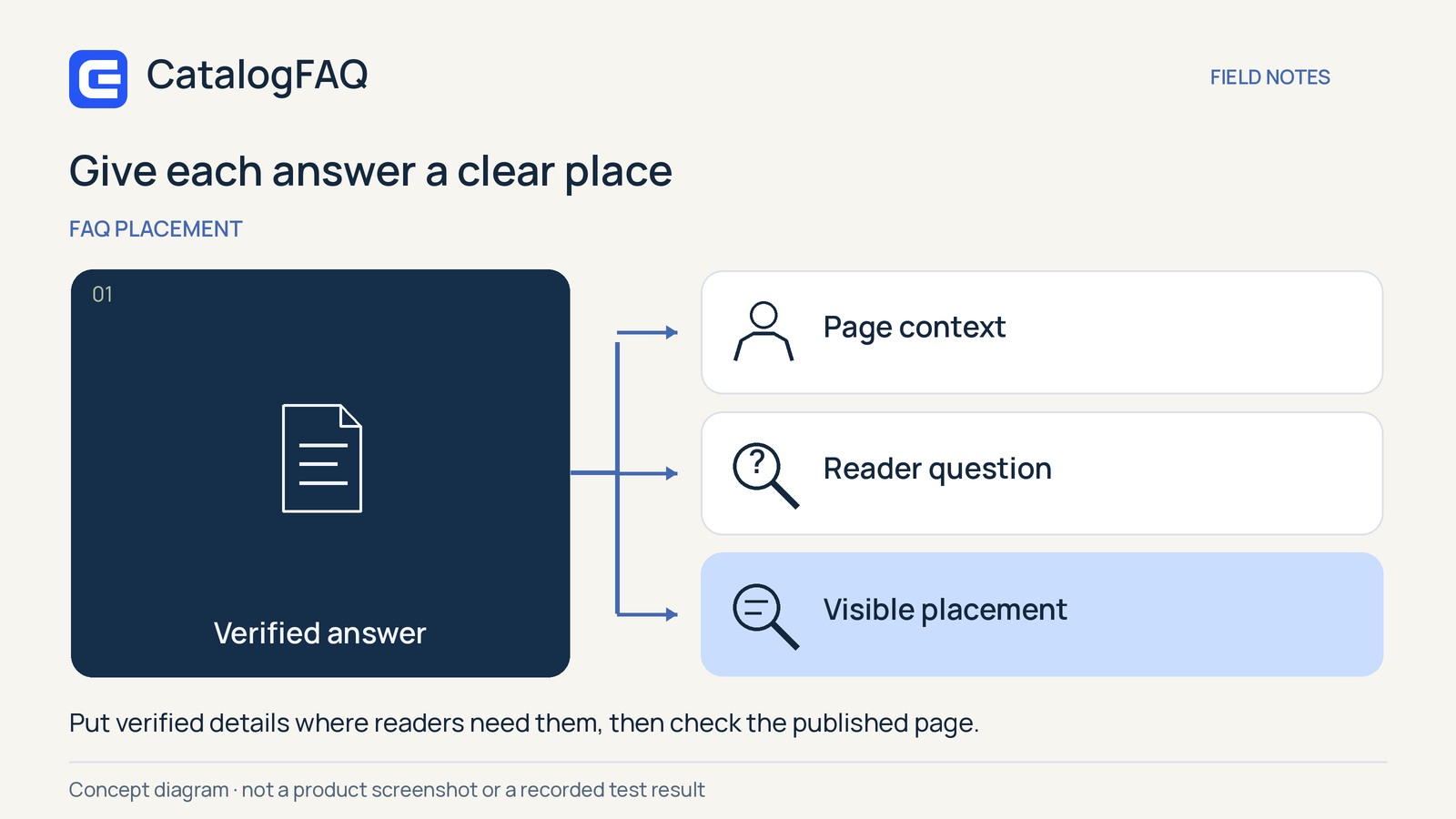
Use complete approved terms, not just a time span. Replace scope labels with items or categories customers can recognize and include any necessary conditions. Avoid “most products” if shoppers cannot tell whether their item qualifies.
For the FAQ’s navigation instruction, replace DISPATCH HEADING with the exact visible heading above the exception terms. Add a heading if needed, and check that the instruction works for every exception page it covers.
Shipping FAQ: the scoped overview
“The dispatch terms for DEFAULT SCOPE are: STANDARD DISPATCH TERMS. These terms do not apply to EXCEPTION SCOPE. For those items, open the product page and read the DISPATCH HEADING section.”
Standard product page: the applicable default
“The dispatch terms for STANDARD PRODUCT are: STANDARD DISPATCH TERMS.”
Exception product page: the separate answer
“The dispatch terms for EXCEPTION PRODUCT are: EXCEPTION DISPATCH TERMS. The standard dispatch terms do not apply to this item.”
The overview is reusable only where its full scope fits. Give product-specific terms directly, not in a distant disclaimer below an unqualified default.
The same wording does not mean the same editing source. Identical pasted answers still need separate edits; changing the shipping FAQ does not update those independent product-page copies.
Update the sources without spreading the exception
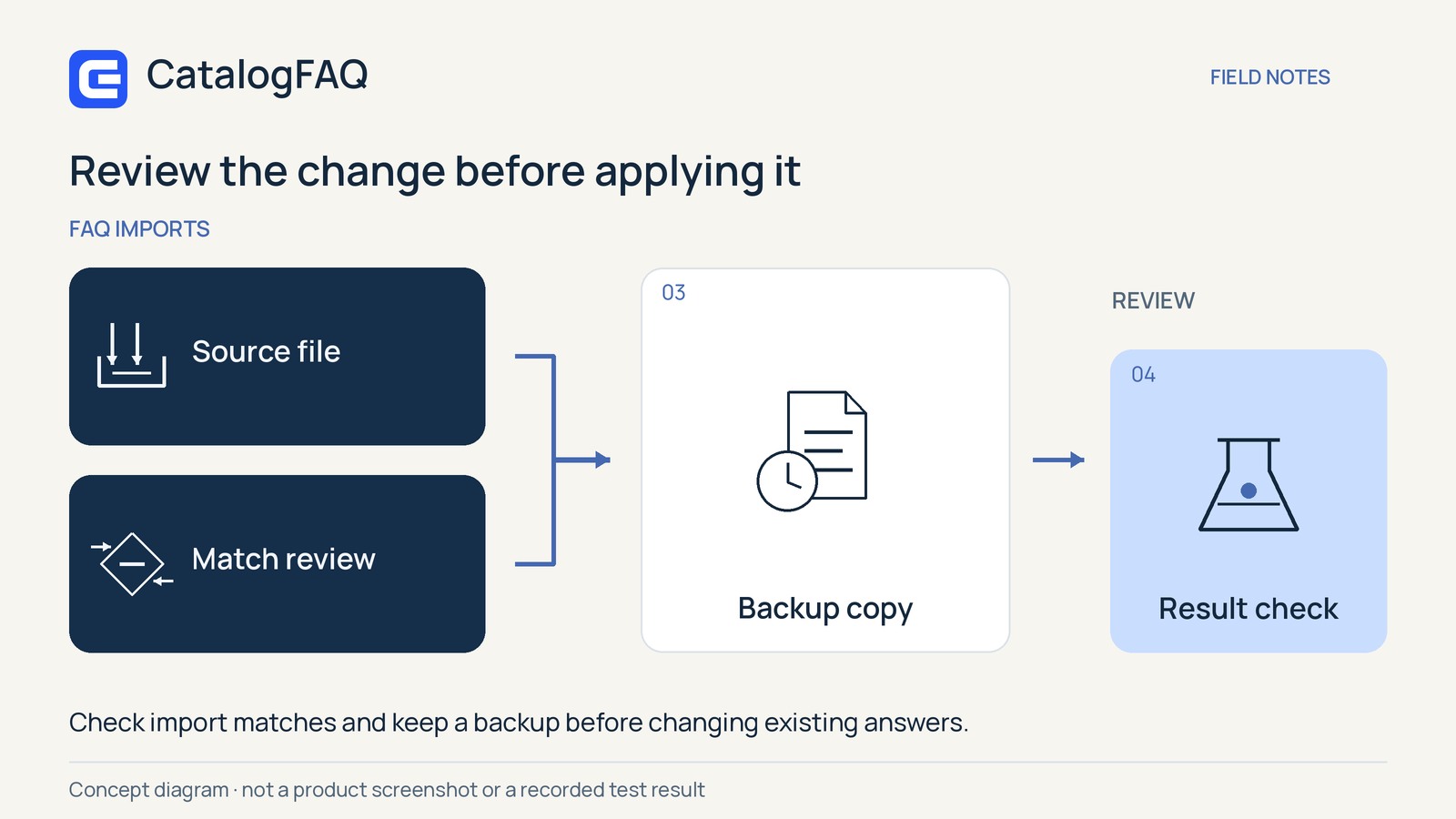
Save the previous wording and coordinate publication with any approved effective date.
For the exception product, open its description and remove only the pasted “All items” paragraph. Keep the complete approved exception terms in the separate-answer wording above, under the heading named in the FAQ. Publish, but leave its status at Pending signed-out check.
Then update the FAQ and standard-product description as planned. Each remains a separate edit, with its own pending verification.
Other editing arrangements need different handling:
- If content is linked: inspect all uses before narrowing the wording or separating its placements. Do not replace shared standard terms with one product’s exception.
- If the page editor cannot separate placements: involve the template maintainer rather than trying to correct a shared source for only one product.
Verify what a signed-out reader sees
Use these manual checks after publication. An editor preview does not prove that the signed-out page is correct.
If old text remains, first confirm that you published the source actually used on the page and look for an additional copy in the layout. Correct that source if needed before treating the problem as stale output.
If stale output persists, refresh the relevant caches or ask your hosting team for help, then revisit. A private browser window does not itself clear a hosting cache.
This verifies published wording and placement, not fulfillment performance. Once the mapped URLs are resolved, add the next affected page to the map and repeat the source-to-page check.